> For the complete documentation index, see [llms.txt](https://docs.optionalpha.com/llms.txt). Markdown versions of documentation pages are available by appending `.md` to page URLs; this page is available as [Markdown](https://docs.optionalpha.com/tools/bots/inputs.md).
# Inputs
Inputs are dynamic tools that give you added flexibility with variables. Discover the many ways you can leverage the power of inputs in your bots and automations.
## Using Inputs
Efficiency is one of the key advantages of using automation in trading. With less manual trading, you have more time to discover, refine, and scale your strategies. One of the most powerful tools for increasing bot functionality on Option Alpha’s platform is the use of custom inputs. This guide will help you understand how to use inputs effectively, the hierarchy involved, and the best practices for managing these inputs.
#### What Are Inputs?
Custom inputs are variable fields within your automations that you can link and edit in the future. They provide a convenient way to manage and update key values without having to edit each individual instance within an automation. By using inputs, you can change a value in one place, and that change will automatically apply wherever the input is referenced in the automation.
For example, if you create a custom input for a ticker symbol within an automation, you can reference that input throughout the automation. Then, if you need to change the ticker symbol later, you simply update the custom input, and the change is reflected everywhere that input is used.
#### Input Hierarchy: Automation-Level vs. Bot-Level Inputs
One of the most important concepts to understand is the hierarchy of inputs. In Option Alpha, you can manage inputs at two levels:
1\. Automation-Level Inputs: These inputs are defined within a specific automation. They can be modified directly in the automation's settings panel and will affect all instances of that input within the automation.
2. Bot-Level Inputs: These inputs are defined at the bot level and can be used across multiple automations within the same bot. Bot-level inputs allow you to manage key variables from a central location, the Bot Settings panel, providing a higher level of control and convenience. By moving an input from the automation level to the bot level, you can change values without diving into each individual automation.
#### Using Bot Inputs
{% embed url="" %}
### What is the difference between a Decision Input, Automation Input, and Bot Input?
{% hint style="info" icon="medal" %}
(Thank you to community member [Robert DiNero](https://app.optionalpha.com/community/member/pachiraaquatica) for his contribution and help in [this post](https://app.optionalpha.com/community/posts/whats-the-difference-between-a-decisio-2026040221160)).
{% endhint %}
We frequently get questions about users changing values, but the bot doesn't recognize the new values. Most often, this is due to the user changing the Default Value instead of the Automation Input value. Here are the 5 types of inputs and how they are used.
#### Decision Inputs
This bot example has one automation:
That automation has one recipe that checks whether SPY is above $600. The $600 value is only used by that specific decision. We'll call that the Decision Value.

#### Automation Inputs
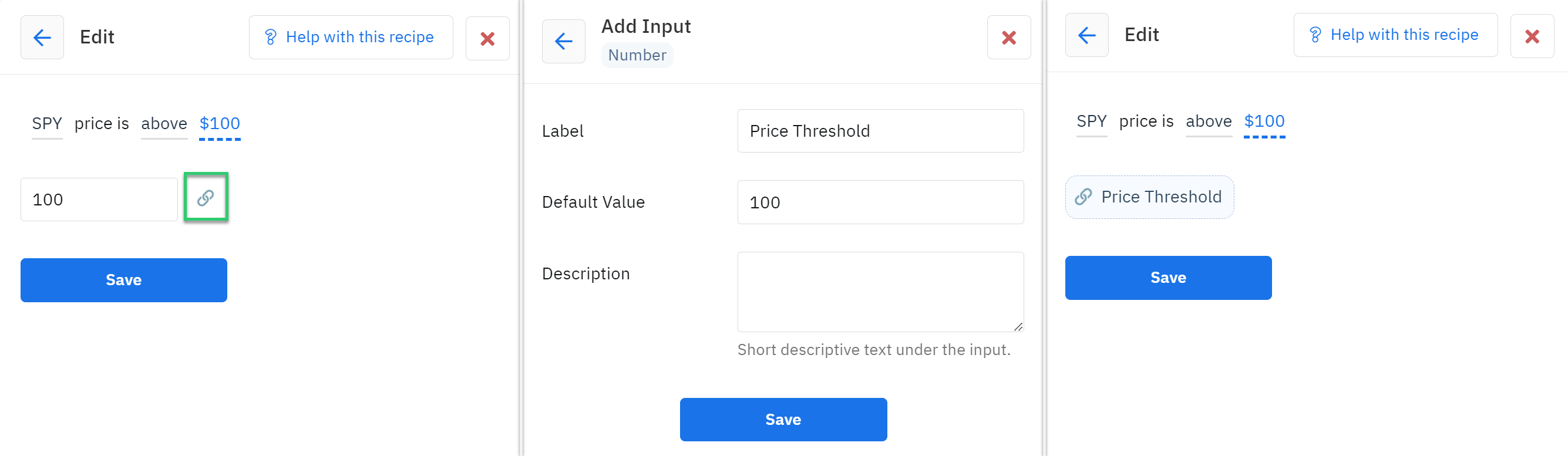
Inputs make it easier to change a value, especially if it is used multiple times within an automation. To add a **second recipe within the bot** that also uses the same price, you can create an **Automation Input** that can be used across multiple decisions within the same Automation (the "Automation" in "Automation Input"). Create the Automation Input when I link (🔗) the Decision Input to the Automation Input.

As there are no existing Automation Inputs that match that data type, add a new Automation Input called 'myAutomationInput'.

Give it a "Default Value" of 600. Important to note that at the time the input is created, the Default Value and the Automation Input value are the same value: 600.

You can see the list of Automation Inputs on the left side of the Automation. There is currently one Automation Input called 'myAutomationInput,' and it's used once in the automation. Click on that input to change the label, default value, and description.

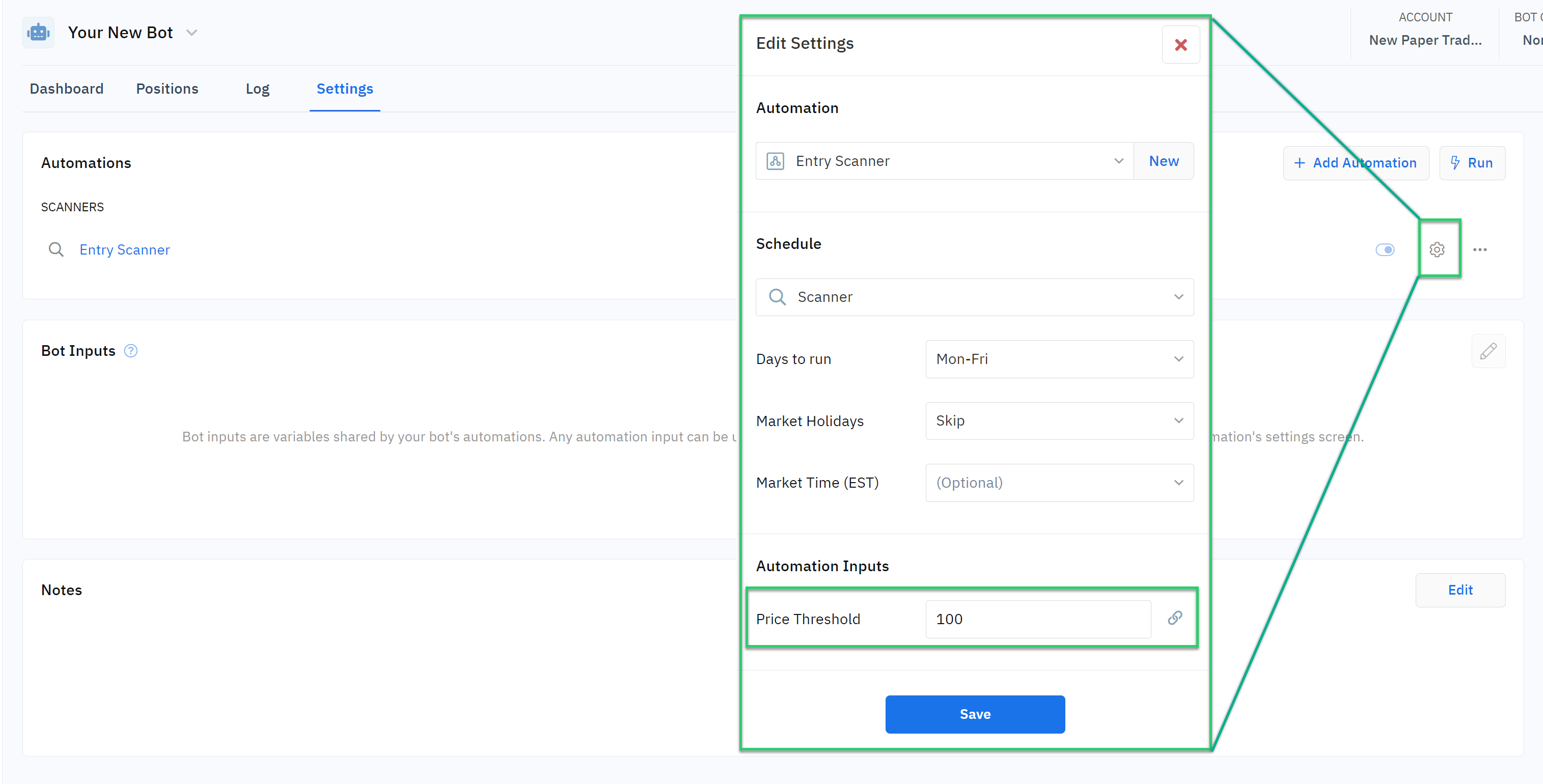
Click on the gear icon (⚙️) next to the automation to see the newly created 'myAutomationInput' and the value assigned to it: 600.

If you want to change the 'myAutomationInput' to 700, you can change that number in the **Settings of the Automation.**
**THIS IS KEY!**

In the automation's Inputs, the Automation Input Default Value is still 600.

When running the automation, the bot uses the 700 value defined in the **settings** for 'myAutomationInput' (**not the Default Value**):

If you want to add another decision using 'myAutomationInput', you now only have to change the value in one location (the gear icon next to the automation name) when you want to change the value. The list of Automation Inputs now shows that there are two places in which that input is used within the automation.

#### Bot Inputs
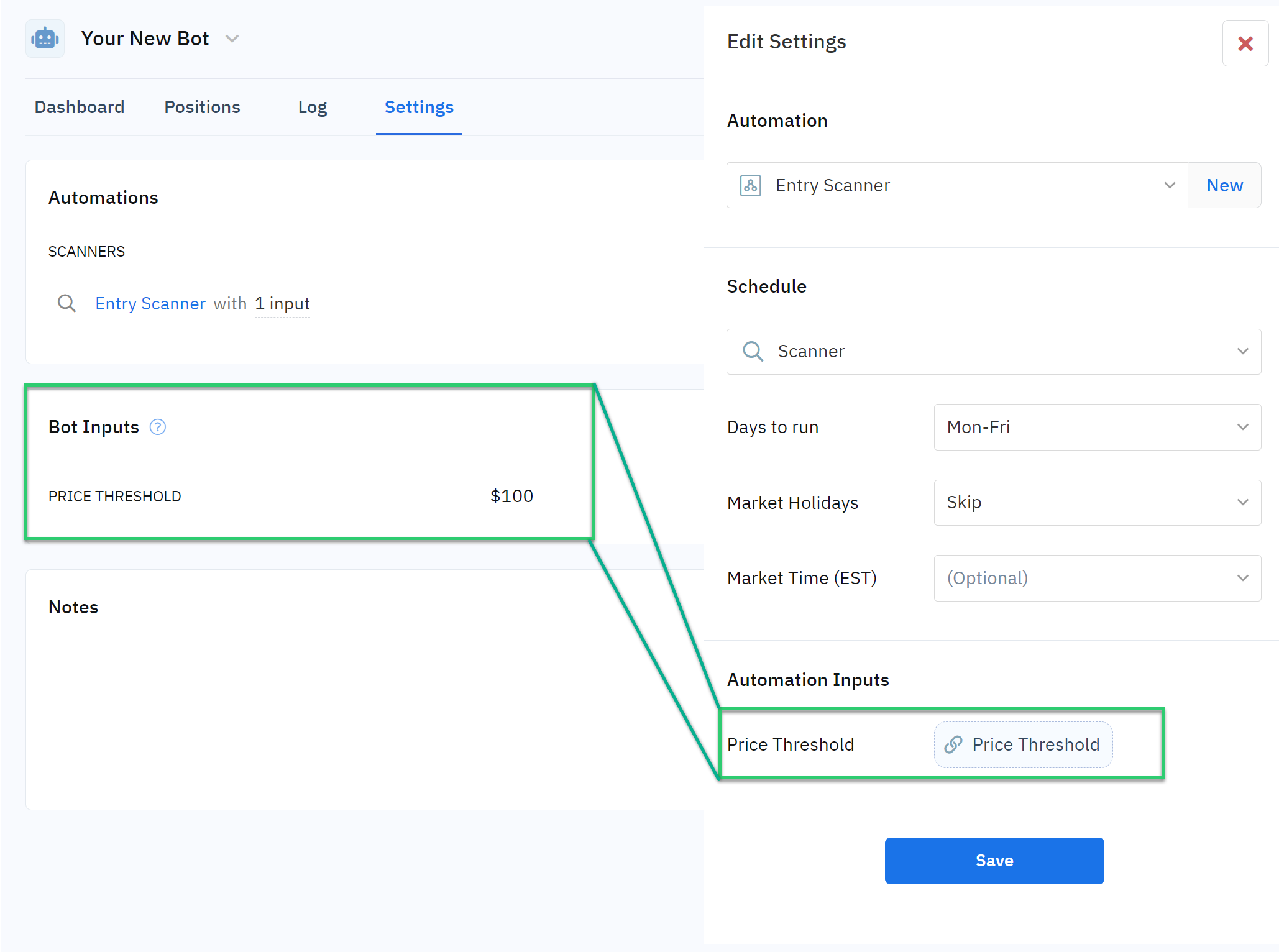
If you want to add a **second automation within the bot** that also uses the same value (as it is easier to change one value), you can create a [**Bot Input**](https://docs.optionalpha.com/tools/bots/inputs#using-bot-inputs) that can be used across multiple automations within the same bot (the "Bot" in "Bot Input"). Create the Bot Input when I link (🔗) the Automation Input to the Bot Input.

Because there are no existing Bot Inputs that match that data type, you can add a new Bot Input called 'myBotInput' and give it a "Default Value" of 650. Important to note that at the time the input is created, the Default Value and the Bot Input value are the same value: 650.

Now 'myAutomatonInput '(shared across multiple decisions) is linked to 'myBotInput' (shared across multiple automations)


Remember from above that **myAutomationInput** had a value of 700, which resulted in "false" when running the automation. Now, when running the automation with the link to **myBotInput**, which has a value of 650, the result is "true": SPY's price of 655.83 is above 650.

If you want the bot to use 675 in each decision and automation that's linked to myBotInput, change myBotInput to 675...

...and run the automation again, the result is false: SPY's price of 655.83 is NOT above 675.

Keep in mind the Bot Input Default Value is still 650. At this point you might say "what's the purpose of the Default Value if it's always ignored?". So let's talk about Default Values.

#### Default Values
Remember: the decision input is linked to the Automation Input, which is linked to the Bot Input - and the **Bot Input value takes priority**. The Default Values are not used UNLESS the Automation/Bot Input link **is broken.** To illustrate this, here is a second bot called mySecondBot.

This bot does not have any automations, so I'll "**copy to bot**" 'myAutomation'. Notice that when copying the automation to the new bot, there are no Bot Inputs.

However, when clicking on the gear icon next to the myAutomation you can still see that **myAutomationInput is linked to myBotInput**!

So the Decision Value is linked to the Automation Input. And the Automation Input is linked to the Bot Input. But the Bot Input is not defined anywhere.
So what happens when you run the automation? Which value will it use? When running the automation, the bot cannot find the Bot Input value and "defaults" to the Automation Input Default Value of 600.

**Upgrades**: Bot Inputs are **not** updated when you upgrade a bot. This is why you see the Bot Inputs screen - so you can compare your Bot Inputs with the author's new Bot Inputs.
If your bot isn't using the values you expect, start by looking at the log to see whether a Decision Input is used (hardcoded value) or an Automation Input is used (variable name). If an Automation Input is used, check the value located in the Automation Settings (not the default value inside the automation). If the Automation Input is linked to a Bot Input, check that the Bot Input is defined.
In addition, whenever you upgrade or clone a bot, make sure that you confirm the values for the Automation Inputs and Bot Inputs. Not only can this result in subpar performance for you, but it can also misrepresent the bot template's performance on the Top Bots page.
### Best Practices for Managing Inputs
Once you establish custom inputs, it’s crucial to manage them effectively to maintain the efficiency and flexibility they offer. Here are some best practices:
\- Avoid Editing Inputs Inside the Editor: Once an input is established outside the editor, whether at the automation or bot level, all changes to that input should be made in the respective settings panel. This ensures consistency and prevents errors that could arise from making changes directly within the editor.
\- Centralize Input Management: By moving key inputs to the bot level, you can manage them from the Bot Settings panel. This centralization simplifies the process of updating values and ensures that changes are applied consistently across all automations within the bot.
\- Reuse and Scale with Inputs: Inputs are especially useful when you plan to reuse an automation in different bots or scenarios. By defining inputs that can be easily modified, you can quickly adapt the automation to different contexts without reworking the entire setup.
Custom inputs are a powerful feature that can significantly enhance the efficiency and flexibility of your trading bots on Option Alpha. By understanding the input hierarchy and following best practices for managing inputs, you can streamline your trading processes, save time, and focus more on optimizing your strategies.